
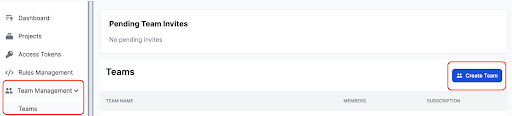
 Enter a new team name and click **Create Team**.
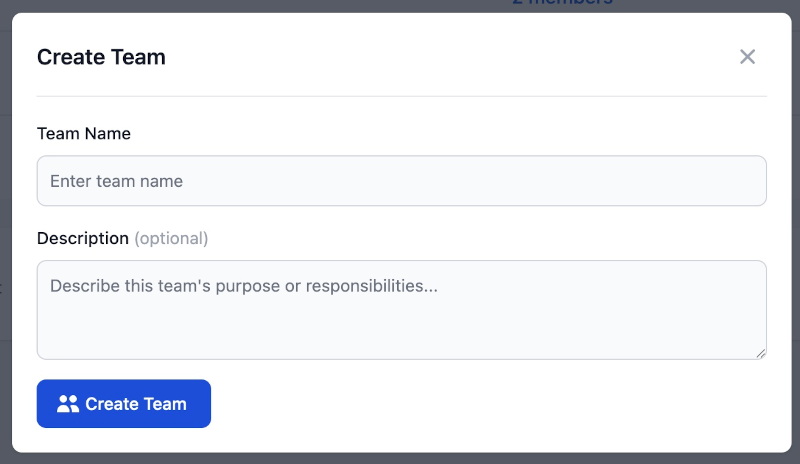 Once you've created a new team, it can be accessed via the top dropdown menu or the **Team Management**/**Teams** menu.
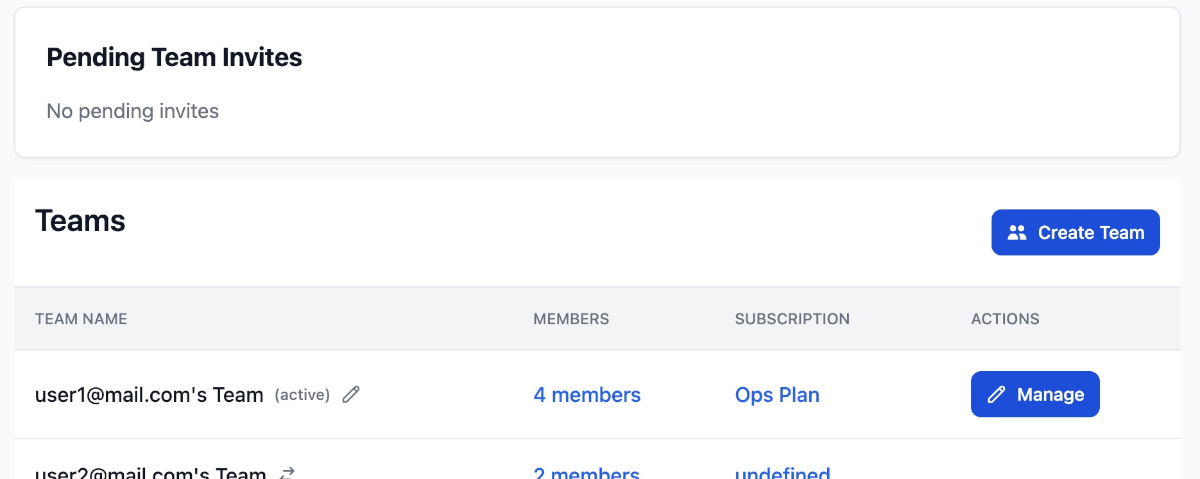
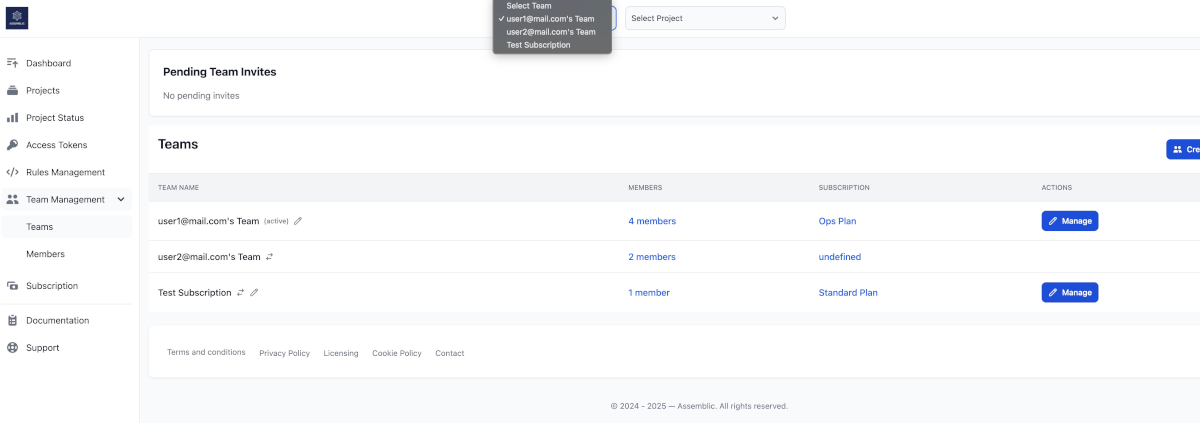 From the Teams area you can manage your team's settings, including its name, description, and security policies.
* Look for the **Manage** button (pen icon) next to your team name in the list.
From the Teams area you can manage your team's settings, including its name, description, and security policies.
* Look for the **Manage** button (pen icon) next to your team name in the list.
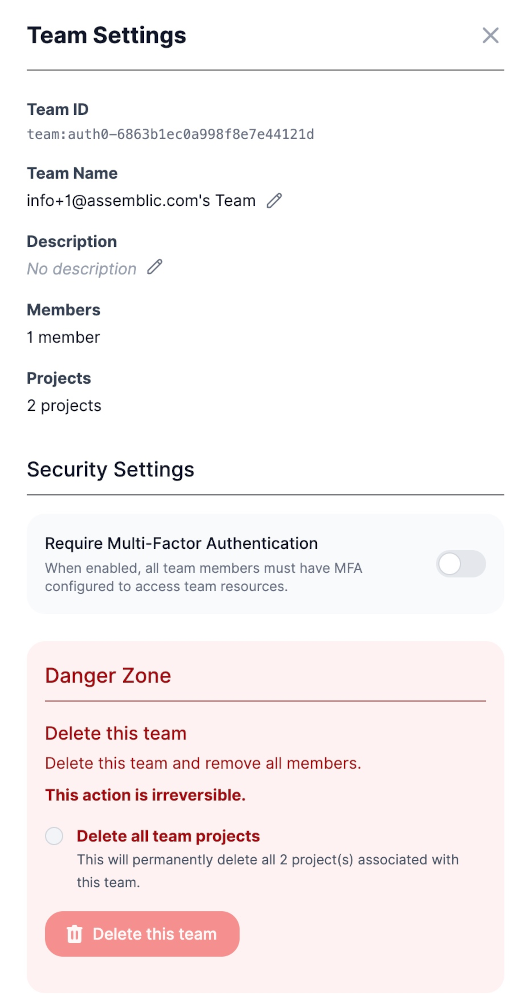 ### Team Settings
* **Name & Description**: You can update the team name and add a description to help teammates identify the workspace.
* **Delete Team**: You can permanently delete a team.
> [!IMPORTANT]
> **Prerequisites for Deletion**: A team can ONLY be deleted if it contains **no projects**. You must delete all projects within the team first. Alternatively, you can select the "Delete all team projects" checkbox to delete all projects in the team before deleting the team. Note, this action is not reversible.
### Security & MFA
Assemblic supports robust Multi-Factor Authentication (MFA) to secure your team.
* **Enforce MFA**: Owners can toggle **Require MFA** in the team settings.
* **Grace Period**: Once enabled, all team members will have a **5-day grace period** to set up their MFA. After this period, they will be required to enroll to access the dashboard.
* **Supported Methods**:
* **TOTP** (Google Authenticator, Authy, etc.)
* **Passkeys** (TouchID, FaceID, Windows Hello, YubiKeys)
## Inviting Members
Select the team from the Team context dropdown menu at the top of the screen.
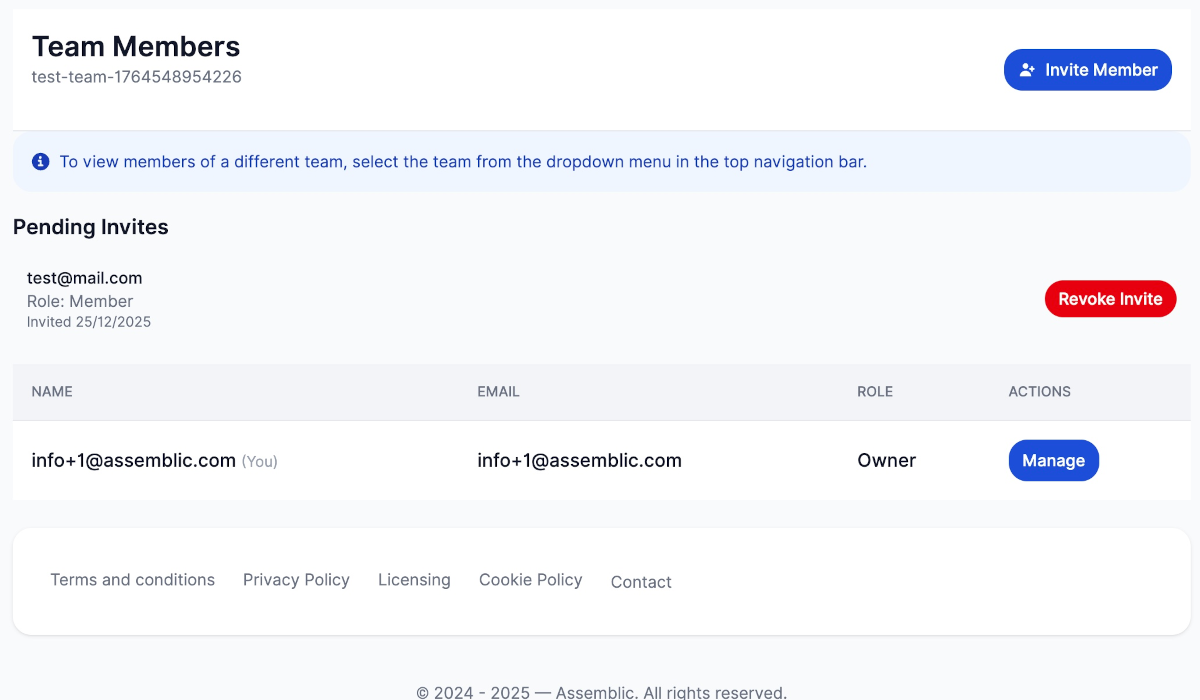
1. Navigate to **Team Management > Members**.
2. Click **Invite Member**.
3. Enter their email address and select a role (e.g., *Admin*, *Release Manager* or *Member*).
4. Send the invitation.
### Team Settings
* **Name & Description**: You can update the team name and add a description to help teammates identify the workspace.
* **Delete Team**: You can permanently delete a team.
> [!IMPORTANT]
> **Prerequisites for Deletion**: A team can ONLY be deleted if it contains **no projects**. You must delete all projects within the team first. Alternatively, you can select the "Delete all team projects" checkbox to delete all projects in the team before deleting the team. Note, this action is not reversible.
### Security & MFA
Assemblic supports robust Multi-Factor Authentication (MFA) to secure your team.
* **Enforce MFA**: Owners can toggle **Require MFA** in the team settings.
* **Grace Period**: Once enabled, all team members will have a **5-day grace period** to set up their MFA. After this period, they will be required to enroll to access the dashboard.
* **Supported Methods**:
* **TOTP** (Google Authenticator, Authy, etc.)
* **Passkeys** (TouchID, FaceID, Windows Hello, YubiKeys)
## Inviting Members
Select the team from the Team context dropdown menu at the top of the screen.

1. Navigate to **Team Management > Members**.
2. Click **Invite Member**.
3. Enter their email address and select a role (e.g., *Admin*, *Release Manager* or *Member*).
4. Send the invitation.
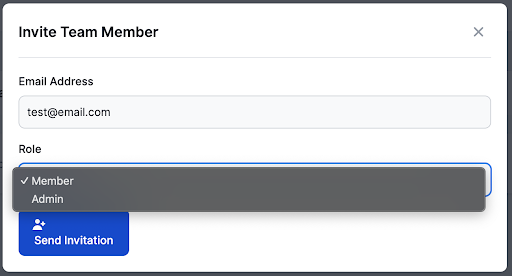 The user will receive an email with instructions to join your team.
## Managing Invites
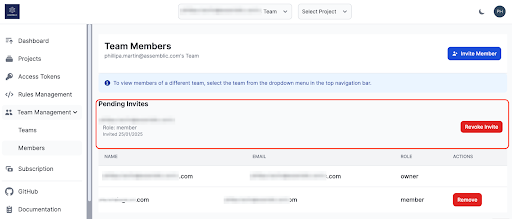
You can view the status of all sent invitations in the **Pending Invites** list.
* **Revoke**: If you sent an invite by mistake or it is no longer needed, you can revoke it immediately using the **Revoke Invite** button.
The user will receive an email with instructions to join your team.
## Managing Invites
You can view the status of all sent invitations in the **Pending Invites** list.
* **Revoke**: If you sent an invite by mistake or it is no longer needed, you can revoke it immediately using the **Revoke Invite** button.
 ## Managing Roles
Active team members are listed in the **Members** table.
* **Remove**: detailed control to remove a user from the team entirely.
* **Manage**: Update a user's role or permissions.
## Team member roles
There are four roles in Assemblic: 'Owner', 'Admin', 'Release Manager' and 'Member'. The table below shows the permissions for each role:
| Permission | Owner | Admin | Release Manager | Member |
|------------|-------|-------|-----------------|--------|
| Change team name |  |—|—|—|
| Invite team members |  |  |—|—|
| View team invites |  |  |—|—|
| Revoke team invites |  |  |—|—|
| Be removed from team |—|  |  |  |
| Remove admin from team |  |—|—|—|
| Remove release manager / member from team |  |  |—|—|
| Have role changed in team |—|  |  |  |
| Promote release manager / member to admin |  |  |—|—|
| Demote admin to release manager / member |  |  |—|—|
| Create new project |  |  |—|—|
| Change project name and description |  |  |—|—|
| Archive or delete project |  |—|—|—|
| Create or revoke API token |  |  |—|—|
| Manage Assemblic subscription |  |  |—|—|
| Push code to main branch, deploy to production |  |  |  |—|
| Manage MFA & Security Settings |  |—|—|—|
**Note:** Owners cannot be removed from a team or have their role changed in a team.
## Managing Roles
Active team members are listed in the **Members** table.
* **Remove**: detailed control to remove a user from the team entirely.
* **Manage**: Update a user's role or permissions.
## Team member roles
There are four roles in Assemblic: 'Owner', 'Admin', 'Release Manager' and 'Member'. The table below shows the permissions for each role:
| Permission | Owner | Admin | Release Manager | Member |
|------------|-------|-------|-----------------|--------|
| Change team name |  |—|—|—|
| Invite team members |  |  |—|—|
| View team invites |  |  |—|—|
| Revoke team invites |  |  |—|—|
| Be removed from team |—|  |  |  |
| Remove admin from team |  |—|—|—|
| Remove release manager / member from team |  |  |—|—|
| Have role changed in team |—|  |  |  |
| Promote release manager / member to admin |  |  |—|—|
| Demote admin to release manager / member |  |  |—|—|
| Create new project |  |  |—|—|
| Change project name and description |  |  |—|—|
| Archive or delete project |  |—|—|—|
| Create or revoke API token |  |  |—|—|
| Manage Assemblic subscription |  |  |—|—|
| Push code to main branch, deploy to production |  |  |  |—|
| Manage MFA & Security Settings |  |—|—|—|
**Note:** Owners cannot be removed from a team or have their role changed in a team.